Skip to content
Scannable home
Scannable home

What’s new in Scannable

We release new versions of Scannable frequently to improve your product experience. Read about updates (new features, product updates etc.) to the web app, mobile app, API, and manufacturer production app. For step-by-step guides, visit the support centre.

  1. Mobile app 3.9.0

    • New
    • Equipment owners
    • Mobile

    Find products faster and see more of each item's history

    Mobile app 3.9.0 brings smarter SKU search, a fuller item history, NFC filters and a way to request a missing product.
    • SKU search: results grouped by product, with exact part number and barcode matches first, plus filters and an advanced search.
    • Item history: scroll through the full history, filter by event type, and see NFC tag changes.
    • NFC tags and photos: filter your inventory by NFC tag, and tap a photo to see it full size.
    • Request a SKU: can’t find a product? Request it from My account.
    • New
    • Equipment owners
    • Web

    Add your inventory in bulk

    Load your whole inventory yourself, straight from Excel or Google Sheets. Paste your rows and add them all at once.

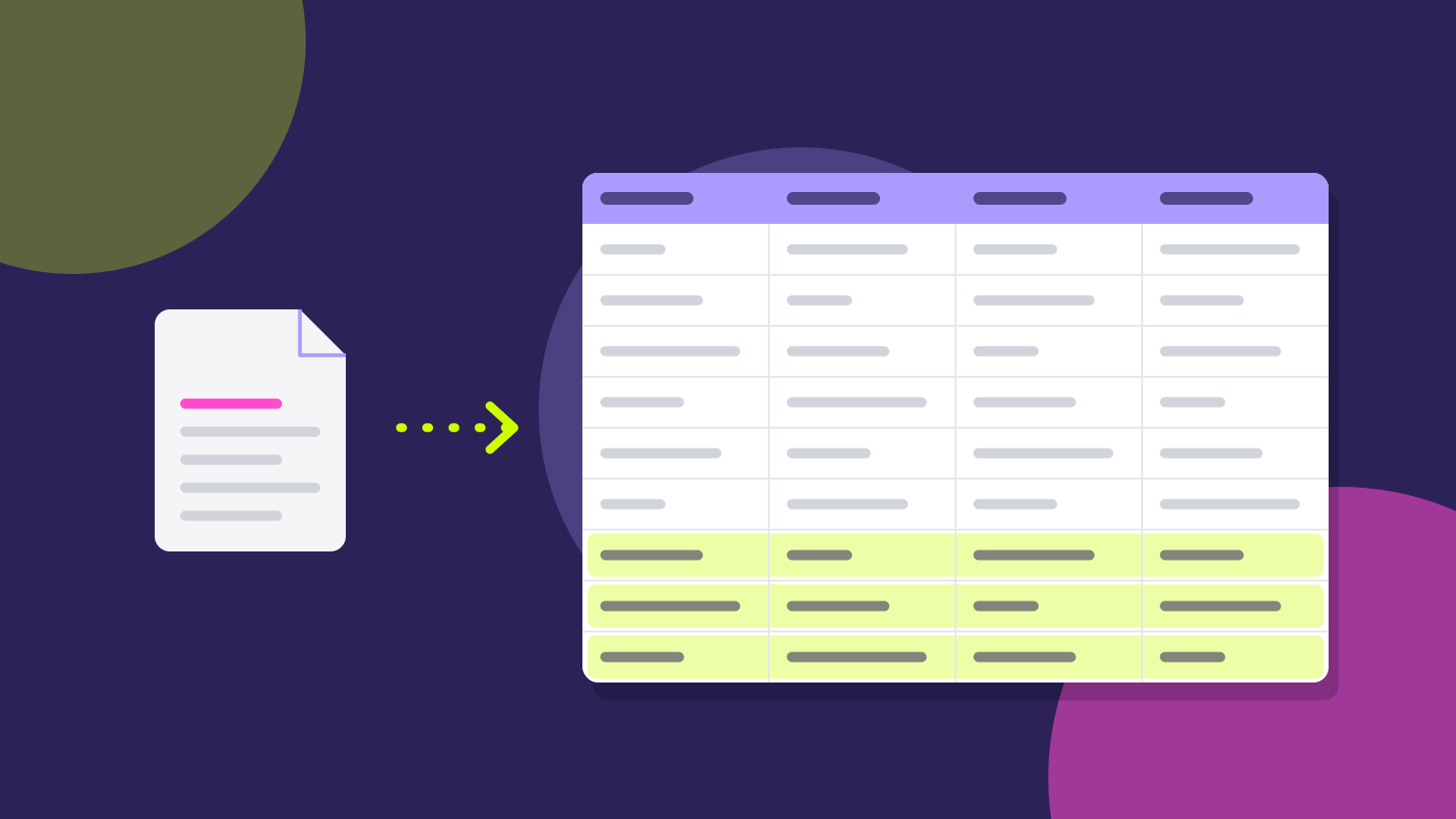
    A spreadsheet pasted into the bulk add grid, with the new rows highlighted
    • Go to Inventory, select Add items, then New bulk add.
    • Paste or type your rows. Each row becomes a draft item, and your work saves as you go.
    • Scannable checks every row and suggests a SKU when a part number matches one.
    • Select Add all valid rows to add every row that nothing blocks. Blocked rows stay in the sheet for you to fix.
    • Admins, Managers and Members can use it. A short tour shows you round the first time.
    Read the setup guide
    • Improved
    • Manufacturers
    • Web

    Manufacturer accounts now focus on production

    Equipment owner features have moved out of manufacturer accounts. To keep tracking your own equipment, set up an equipment owner organisation.

    Inventory, folders, labels, assignments, inspections of your own equipment and multi-scan are no longer part of a manufacturer account. Your manufacturer account keeps everything for production, serialisation and Smart PPE™.

    To keep using the equipment owner features, set up an equipment owner organisation alongside your manufacturer account.

    Read the setup guide
    • New
    • Manufacturers
    • Both

    Stock for source reels

    Add your source reels to Stock and every length you cut from them traces back to the reel it came from.

    • Add reels from cuttable SKUs only.
    • See every production run cut from each reel.
    • Mark a reel as consumed when it runs out. It stays listed, so every cut length still traces back to it.
    • In the mobile app, the Inventory tab is now Stock for manufacturers, and the cut rope wizard picks its source reels from there.
    Read the setup guide
  2. Mobile app 3.8.0

    • New
    • Equipment owners
    • Mobile

    Manage your team and custom fields from your phone

    Mobile app 3.8.0 brings team settings, custom fields on items and instant joining for invited teammates.

    • Team and profile: view and manage your team, or leave an organisation, straight from your profile settings.
    • Custom fields: track and add custom fields on items, with warnings before you reach a limit.
    • Instant joining: teammates you invite can see and accept their invitation while they set up their account.
  3. Mobile app 3.7.1

    • New
    • Equipment owners
    • Both

    Archive items instead of removing them

    Archived items drop out of your active list, counts, exports and reminders, but nothing is deleted. Restore an item any time.

    • Archived items leave your active list, search, counts, exports, and expiry and inspection notifications.
    • Nothing is deleted. Restore an item any time from Manage archives.
    • Archive on the web or in the mobile app. Restoring is done on the web.
  4. Mobile app 3.7.1

    • New
    • Equipment owners
    • Both

    Invitations come first when you sign up

    If you’ve been invited to an organisation, you now see the invitation first. Admins can also unassign several items from someone at once.

    • Guided sign-up: if you’ve been invited, you see that invitation first instead of being asked to name a new organisation. Sign-up is three steps, and the organisation step only appears if you’re not joining one.
    • Unassign in one go: from a team member’s page, select items and choose Unassign items from user. The items stay in your inventory.
    • Cleaner scanning: the mobile keyboard no longer autocorrects serials and search terms, and Bluetooth scanner input no longer gets jumbled mid-scan.
    • Inspection frequencies: reapplying a frequency keeps its original dates, and you’re warned before a change moves an item’s next inspection date.
    • Improved
    • Equipment owners
    • Web

    Download your inventory as a CSV

    The inventory download now comes as a CSV as well as a PDF, ready for a spreadsheet and matching what's on screen.

    • The download button is now a menu: PDF or CSV.
    • The CSV has the same columns as the PDF and follows the filters, search and folder you have on screen. Dates open as dates in a spreadsheet.
    • The status column now shows each item’s current status, so an overdue item says it’s overdue instead of showing its last “Passed” result.
  5. Mobile app 3.7.0

    • New
    • Manufacturers
    • Mobile

    A mobile app built for manufacturers

    Mobile app 3.7.0 gives manufacturers their own experience, built around production rather than inspection.

    • Production tab: your serial runs by purchase order and batch. Search by sales order, PO, batch or serial, and filter by print status, customer, product and date.
    • Print labels from the app: after a cut-rope run, pick a printer and print all labels or just the first.
    • Capturing serials starts with the product: search your SKUs, confirm the run details, then capture.
    • A simpler Home and Stock list: equipment owner features are hidden, and new manufacturer accounts skip the equipment owner onboarding.
    • New
    • Manufacturers
    • Web

    Change a SKU’s part number yourself

    Correct a SKU’s part number from the SKU edit panel, alongside its name and EAN. No support request needed.

    • You’re asked to confirm before the change is saved.
    • Items already registered under the SKU stay attached to it.
    • Labels you’ve already printed or etched keep the old part number.
    • A part number already used by another live SKU in your catalogue can’t be reused.
    • New
    • Manufacturers
    • API

    Send product specifications through the API

    Send weight, breaking strength, diameter and more straight from your PIM through the Scannable API, instead of emailing a spreadsheet.

    • Set specifications when you create or update a product or SKU. Product values are the default for its SKUs, and a SKU’s own value is never overwritten.
    • Updates merge, so you only send what’s changed. A nightly sync works out of the box.
    • Upload a whole catalogue in one call. Anything that needs attention comes back tied to the exact item.
    • Invalid fields or units are rejected with a list of the fields that are valid for that category. Ranges such as “10–14 kN” are accepted with a warning while you tidy your data.
  6. Production app 1.7.0

    • Improved
    • Manufacturers
    • Production app

    Scannable Tower is now the Scannable Production App

    A new name, a job picker grouped by purchase order and a more reliable reader. Each machine needs to sign in once after updating.

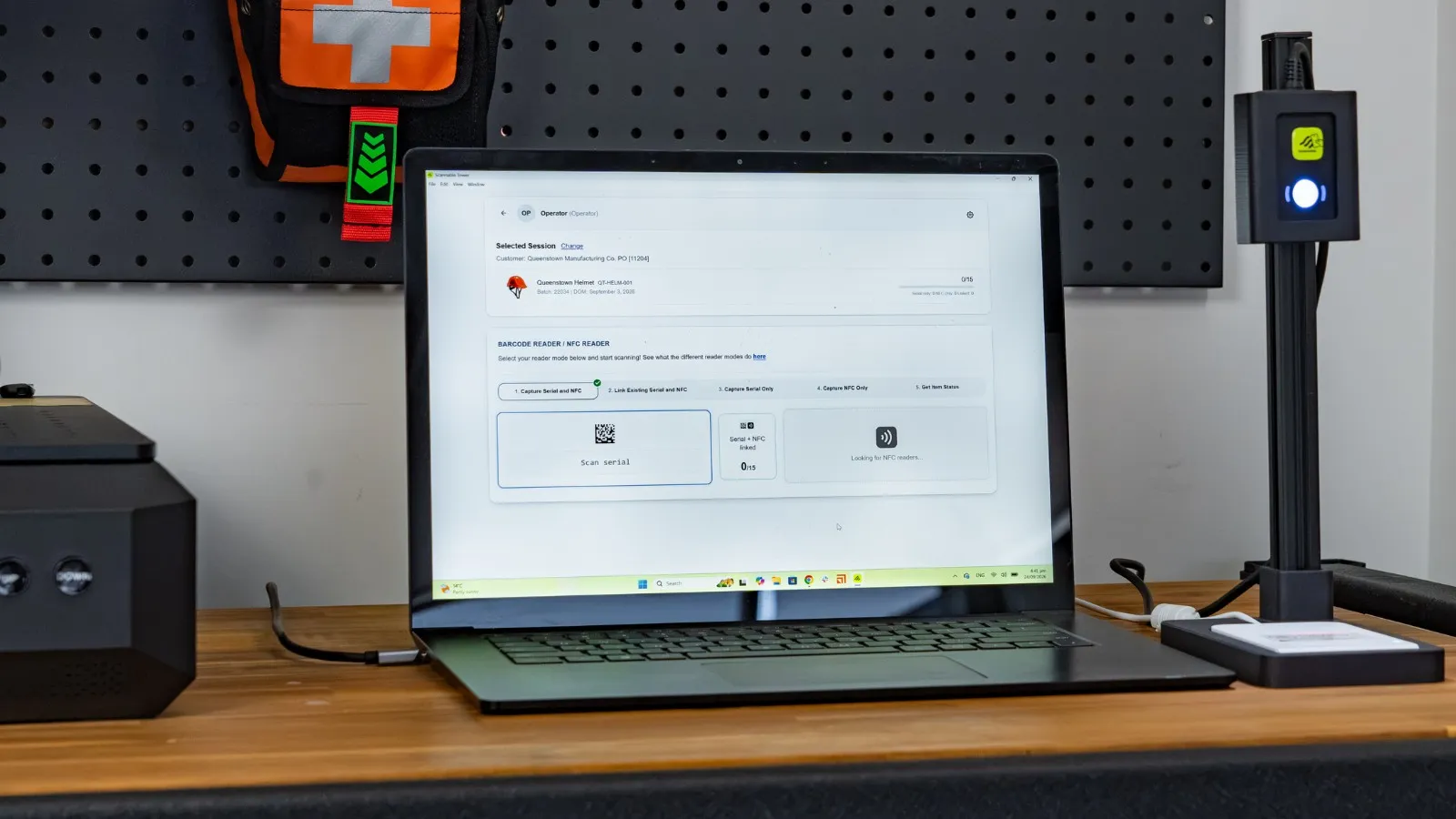
    The Scannable Production App on a laptop beside a Scannable reader tower
    • Sign in with your Scannable account, or paste an API key as before. The update clears the app’s stored data, so each machine signs in once.
    • Jobs grouped by purchase order, with brand, product images and capture progress, newest first.
    • Close runs from the list, and reopen runs closed in the last 7–180 days without going to the web app. Runs close on their own when the last ordered unit is captured.
    • The reader sets itself up on connect, so no more ghost scans when it’s idle.
    • Every screen is available in English, Vietnamese and Chinese (Simplified and Traditional).
    Read the setup guide
    • New
    • Manufacturers
    • Both

    Track your suppliers' production in one place

    Connect with the organisations who manufacture for you and follow their work in one shared production view, without giving them a login to your account.

    • Connect to another organisation from Settings → Connections with a shared connection code, or ask the Scannable team to set one up.
    • Raise purchase orders naming who does the work: in-house or a connected supplier.
    • Serialisation is now a Production area, organised by purchase order, with serials in a side panel and print actions for each run.
    • If you produce for a connected brand, their orders show alongside your own, labelled with their name and logo.
    • Cut rope lengths from a reel in the web and mobile apps, with any length set at cut time.
    • New
    • Equipment owners
    • Manufacturers
    • Both

    Manufacturer verified SKUs

    Manufacturers can mark a SKU as verified once they've checked its data. Equipment owners see a checkmark on those products.

    • Manufacturers verify one SKU or many at once from the All SKUs list. It’s their call, separate from the SKU’s data quality score.
    • Equipment owners see a Manufacturer verified checkmark next to verified products in their inventory list, item details and search results.
    • New
    • Manufacturers
    • Web

    See your Smart PPE™ after it leaves the factory

    A new analytics dashboard shows production over time, how often your products are scanned, and how many are claimed by their owners.

    • Production report: serialised items produced over time, with an all-time total and monthly or weekly views.
    • Engagement report: total scans, NFC, QR and Data Matrix scans, SKU count and claim rate, with a trend chart you can filter by category, product and SKU.
    • The dashboard replaces the old manufacturer stats strip.
  7. Mobile app 3.4.0

    • New
    • Equipment owners
    • Mobile

    Add Smart PPE™ with its manufacturer data

    When a serial you scan or type matches a Smart PPE™ item, you can add that exact item with its data from the manufacturer.

    • Scan or type a serial while adding an item. If it matches an existing Smart PPE™ item, add it in one step, with the manufacturer’s data already filled in.
  8. Mobile app 3.3.0

    • New
    • Equipment owners
    • Mobile

    Scan Smart PPE™ without installing the app

    On an iPhone, scan Smart PPE™ and see the item and its information instantly, with no app to install.

    • Instant view (iPhone): scan Smart PPE™ and see the item and its information straight away, without installing the app.
    • Remove several items in one go.
    • Add several items without a serial number. Assemblies bring their parts across automatically.
    • Moving an item to a folder now asks you to confirm.
  9. Mobile app 3.2.2

    • Improved
    • Equipment owners
    • Mobile

    See who was assigned in an item’s history

    An item’s history now shows who it was assigned to and unassigned from.

    • Open an item’s history to see each time it was assigned to or unassigned from someone.
  10. Mobile app 3.2.0

    • New
    • Equipment owners
    • Both

    Thorough examinations on mobile, and suggested frequencies

    Create and update thorough examinations on your phone, and let Scannable suggest inspection frequencies as you add items.

    • Thorough examinations on mobile: create and update them in the app, and download certificates straight from your phone.
    • Suggested inspection frequencies: frequencies are suggested as you add items. Compliance templates fill in new frequencies, and you apply a suggestion in one tap.
    • Notifications your way: opt in to real-time inventory alerts and a weekly digest of upcoming inspections and expiries.
    • German and Italian: Scannable is now available in both.
  11. Mobile app 3.1.0

    • New
    • Equipment owners
    • Both

    Track items with removable parts as assemblies

    Group items with removable parts, such as a lanyard with carabiners or a first aid kit, and manage each part like any other item.

    • An item with removable parts is an assembly: a harness with a rope bridge, a lanyard with carabiners, a first aid kit.
    • Add and remove parts as kit changes.
    • Each part keeps its own record: inspection results, dates of manufacture and first use, expiry dates and more.
    • Improved
    • Equipment owners
    • Web

    Folder names in inventory reports

    Download an inventory report from a folder and the PDF says which folder it is, and which subfolder each item sits in.

    • The folder’s name is in the title of the PDF.
    • Each row shows which subfolder the item sits in.
    • New
    • Equipment owners
    • Web

    Control who sees each folder

    Set permissions on each folder, so sensitive or location-specific equipment is only visible to the right people.

    • Choose who can see and work with each folder in your organisation.
    • Keep equipment for one site or team visible only to the people who need it.
    Read the setup guide
  12. Mobile app 3.0

    • Improved
    • Equipment owners
    • Both

    Four ways to see your inventory on your phone

    Browse by item, folder, category or label, and add several items of the same product in one go. Groups are now called labels.

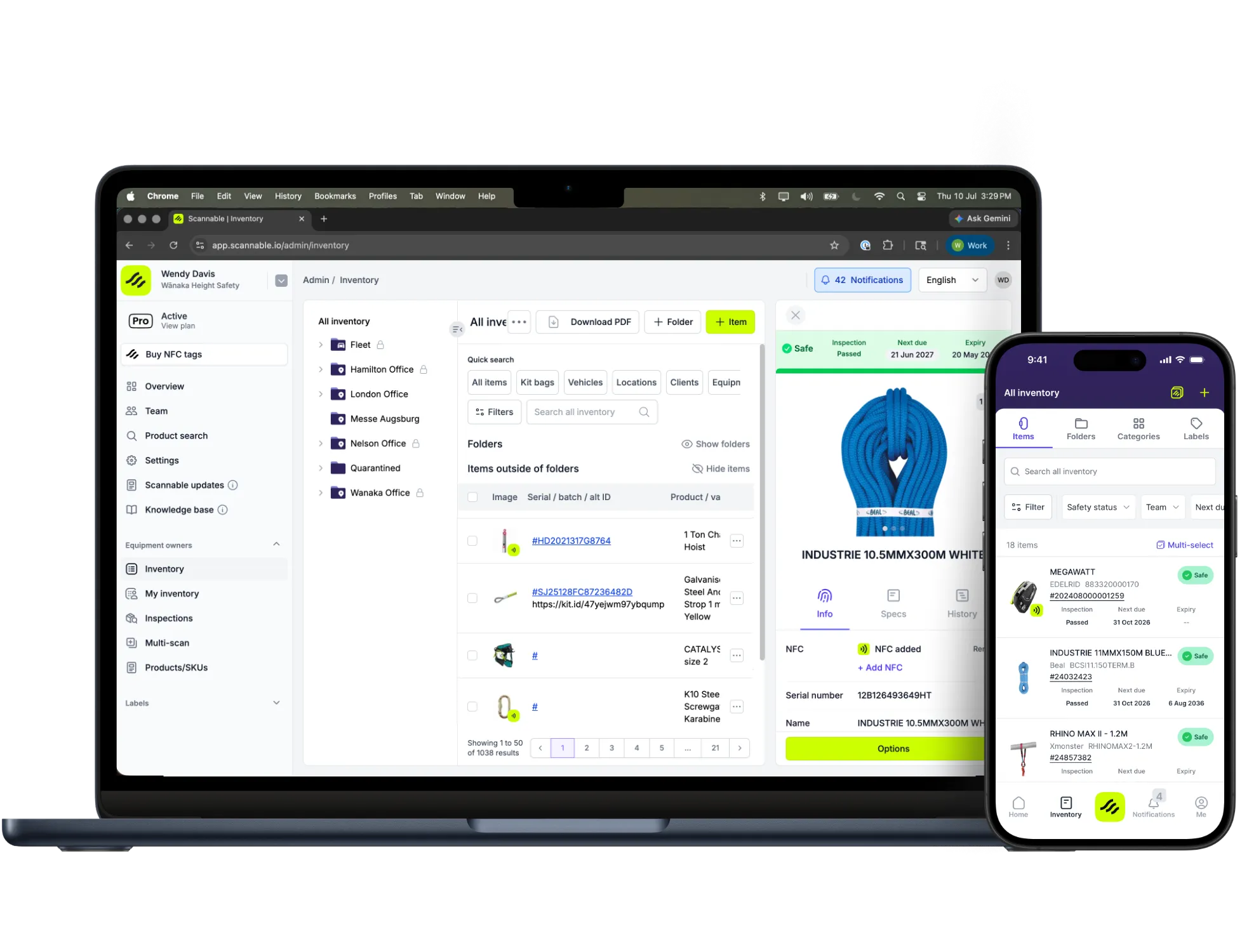
    The Scannable inventory on the web app and the new Items, Folders, Categories and Labels tabs in the mobile app
    • Items: everything you own in one list.
    • Folders: where equipment lives, such as locations, vehicles and kit bags. An item sits in one folder at a time.
    • Categories: filter by product type, such as harnesses or carabiners. Categories come from manufacturer data, so there’s nothing to set up.
    • Labels: how equipment is used. Groups are now called labels, and an item can have several.
    • Add several items at once: scan serials and link NFC tags as you go, then review them together.
    • New
    • Equipment owners
    • Web

    Scan NFC tags in the web app with a USB reader

    Plug in a USB NFC reader and scan a tag to open its folder or item straight away. You can also update dates across several items at once.

    • NFC in the web app: scan a tag linked to a folder or item and it opens instantly, either the folder in your inventory or the item’s side panel.
    • Update several items at once: batch number, expiry date, date of manufacture, date of first use and purchase order, from the Inventory screen.
  13. Mobile app 2.34.0

    • New
    • Equipment owners
    • Mobile

    Manage your team from your phone

    View team members, change roles, set competent person status, remove members and invite new people from the mobile app.

    • See everyone in your organisation.
    • Update roles and competent person status.
    • Remove members, and invite new ones.
    • Improved
    • Equipment owners
    • Web

    Safe working load saved from thorough inspections

    The safe working load (SWL) you enter during a thorough inspection is now saved to the item and shown in its information.

    • Enter the SWL during a thorough inspection and it becomes the SWL in the item’s information.
  14. Mobile app 2.33.1

    • Improved
    • Equipment owners
    • Mobile

    Documents open in your browser

    User instructions, declarations of conformity and other PDFs now open in a browser tab.

    • Every PDF in the app now opens in a browser tab.
    • New
    • Equipment owners
    • Web

    Change an item’s SKU

    Added an item under the wrong product or size? Change its SKU yourself in the web app.

    • Change an item’s SKU yourself in the web app.
  15. Mobile app 2.32.0

    • New
    • Equipment owners
    • Both

    Record how often equipment is used

    Record each time an item is used and keep a running total, with every increment in its history.

    • From an item’s options menu, add to its recorded usage. The total carries forward and shows in the item’s information.
    • Every increment is listed in the item’s history.
    • On the web, filter by Number of uses to find your most-used equipment.
    • The mobile app also works better with larger text sizes.
  16. Mobile app 2.31.0

    • New
    • Equipment owners
    • Mobile

    Sign in with your work account

    If your company uses single sign-on (SSO), you can now sign in to the mobile app with your work credentials.

    • Single sign-on: sign in securely with your work account.
    • A smoother sign-in screen, faster and more reliable.
    • Equipment outside your organisation shows a tidier set of information.
  17. Mobile app 2.30.0

    • New
    • Equipment owners
    • Both

    Several inspection frequencies on one item

    Track weekly checks and six-monthly inspections on the same item, and manage frequencies from your phone too.

    • Several frequencies per item, each with its own inspection type (regular or thorough).
    • Any interval: daily, weekly, monthly, quarterly, annually or a custom duration.
    • Lists of all upcoming inspections, and of every item with a given frequency.
    • Frequencies on mobile: create and manage them in the app.
    • Traditional Chinese is now available on the web.
  18. Mobile app 2.28.0

    • New
    • Equipment owners
    • Mobile

    Act on several items at once on mobile

    Select several items in the mobile inventory and record inspections, move, assign or label them together.

    Select multiple items in the inventory screen, then act on them all at once:

    • Record inspection results.
    • Move them to a folder.
    • Assign them to a team member.
    • Add or remove labels.
    • Improved
    • Equipment owners
    • Web

    A quicker inventory screen

    Click anywhere in a row to open an item, and edit it from the menu at the end of the row.

    • Click anywhere in a row to open the item’s information.
    • Edit an item from the three dots at the right of its row.
  19. Mobile app 2.25.0

    • New
    • Equipment owners
    • Both

    Sign in with Google, Microsoft or Apple

    Sign in to Scannable with your Google, Microsoft or Apple account. No password to create or remember.

    • Choose Google, Microsoft or Apple on the sign-in screen, on the web or in the app.
    • Improved
    • Equipment owners
    • Web

    Help moving your groups into folders

    See which groups have moved into folders, the order to move the rest, and which should stay as groups (now labels).

    • See which groups are already in a folder.
    • Follow the suggested order for moving the rest.
    • See which groups should stay as groups. Groups became labels in December 2025.
  20. Mobile app 2.24

    • New
    • Equipment owners
    • Both

    Organise your equipment in folders

    Organise your equipment the way it really is, by location, vehicle or kit bag, with folders inside folders.

    • Nest subfolders inside folders, like files on a computer, and browse them in a collapsible tree.
    • Move items between folders, and filter by folder type.
    • Choose a type (kit bag, vehicle or location), add a description, share a folder, or check items off in the field.
    • Folders replace groups as the main way to organise equipment. Groups became labels in December 2025.
    • Improved
    • Equipment owners
    • Web

    Pre-use checks no longer move the next due date

    When an item has a thorough inspection frequency, only a thorough examination changes its next due date.

    • Record pre-use inspections without the next due date changing.
    • The inventory table shows each item’s inspection frequency, with a badge for thorough frequencies.
  21. Mobile app 2.23.0

    • New
    • Equipment owners
    • Mobile

    Remove several items from a group by scanning

    Use multi-scan to remove several items from a group in one go.

    • Scan items one after another to take them all out of a group. Groups became labels in December 2025.
    • Improved
    • Equipment owners
    • Web

    More control over thorough examinations

    Delete or edit thorough examinations, add notes to the certificate, and set a thorough inspection frequency.

    • An admin or competent person can delete a thorough examination, or remove an item’s inspection from one.
    • A new Thorough inspection type in inspection frequencies: the next due date follows it, and periodic inspections don’t change it.
    • Inspection notes show in full on the certificate of thorough examination.
    • Add notes to a thorough examination. They show on the certificate below the inspector declaration.
    • New
    • Equipment owners
    • Web

    Product data for products you create

    Set product data for products you’ve created, and apply it to all of their SKUs at once.

    • Add product data to a product you created, and it applies across every SKU of that product.