
Using Scannable with

Download the app
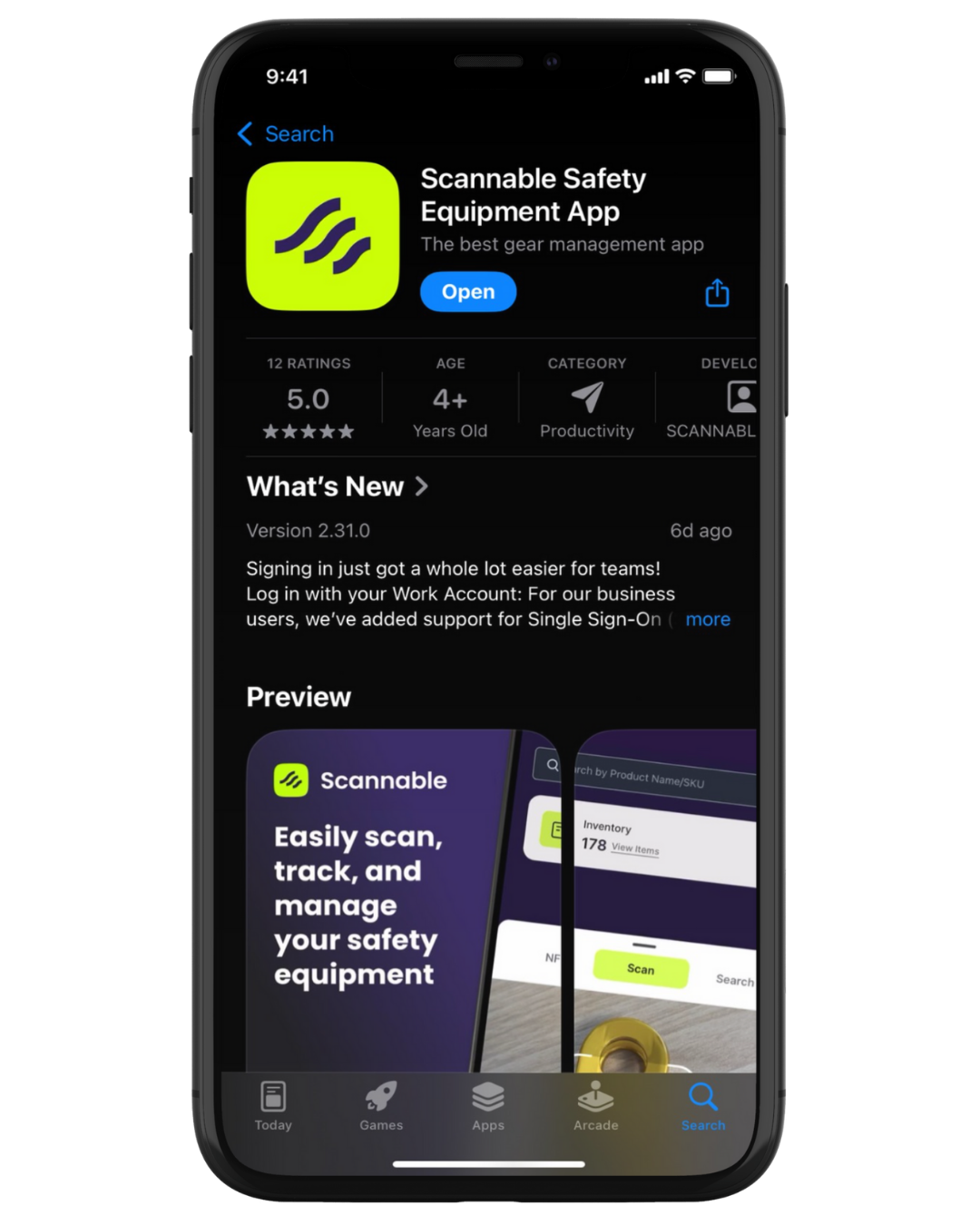
Download our free app from the App Store or Google Play.


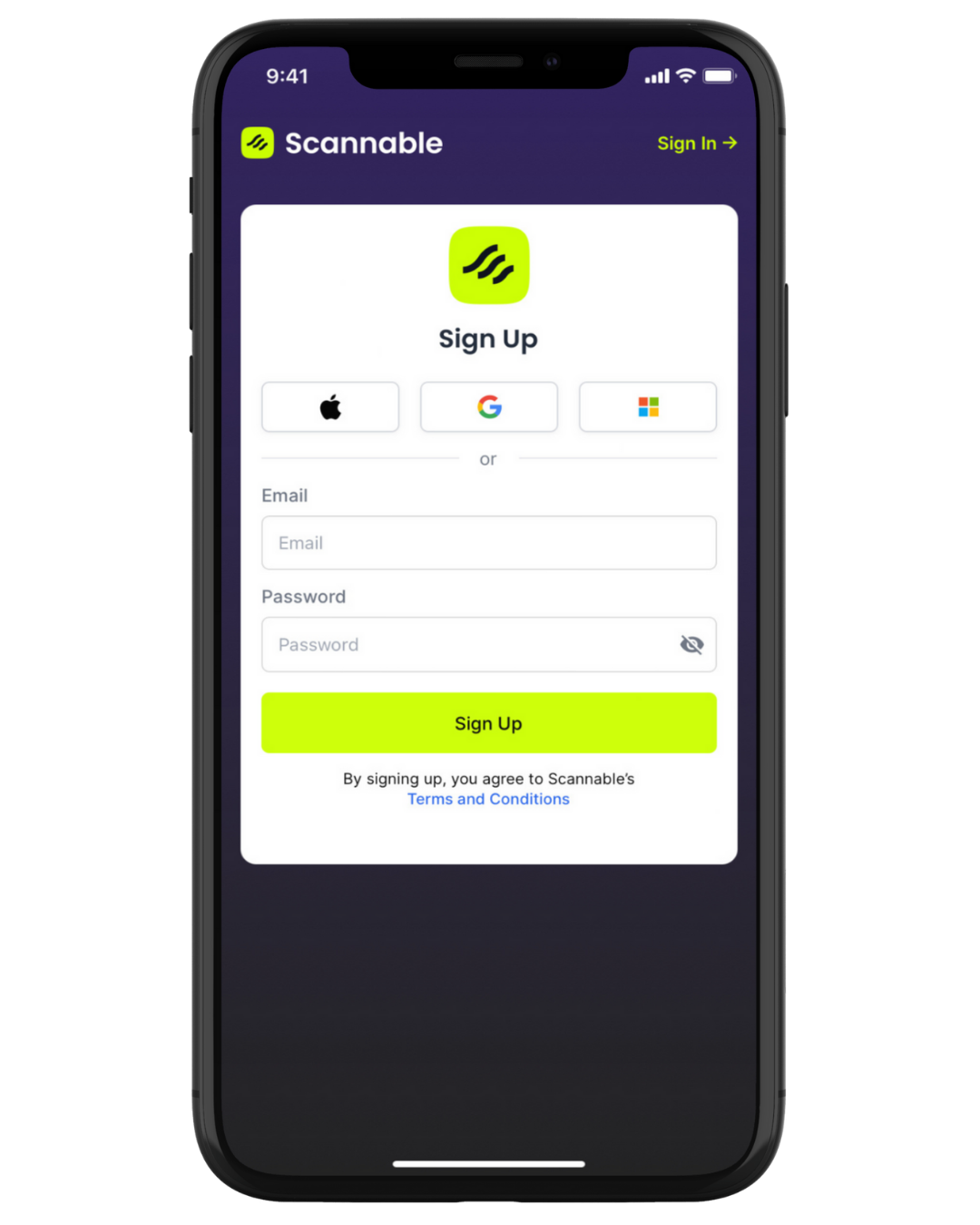
Sign up
Click the “Sign Up” button to create an account and start saving equipment to your inventory.
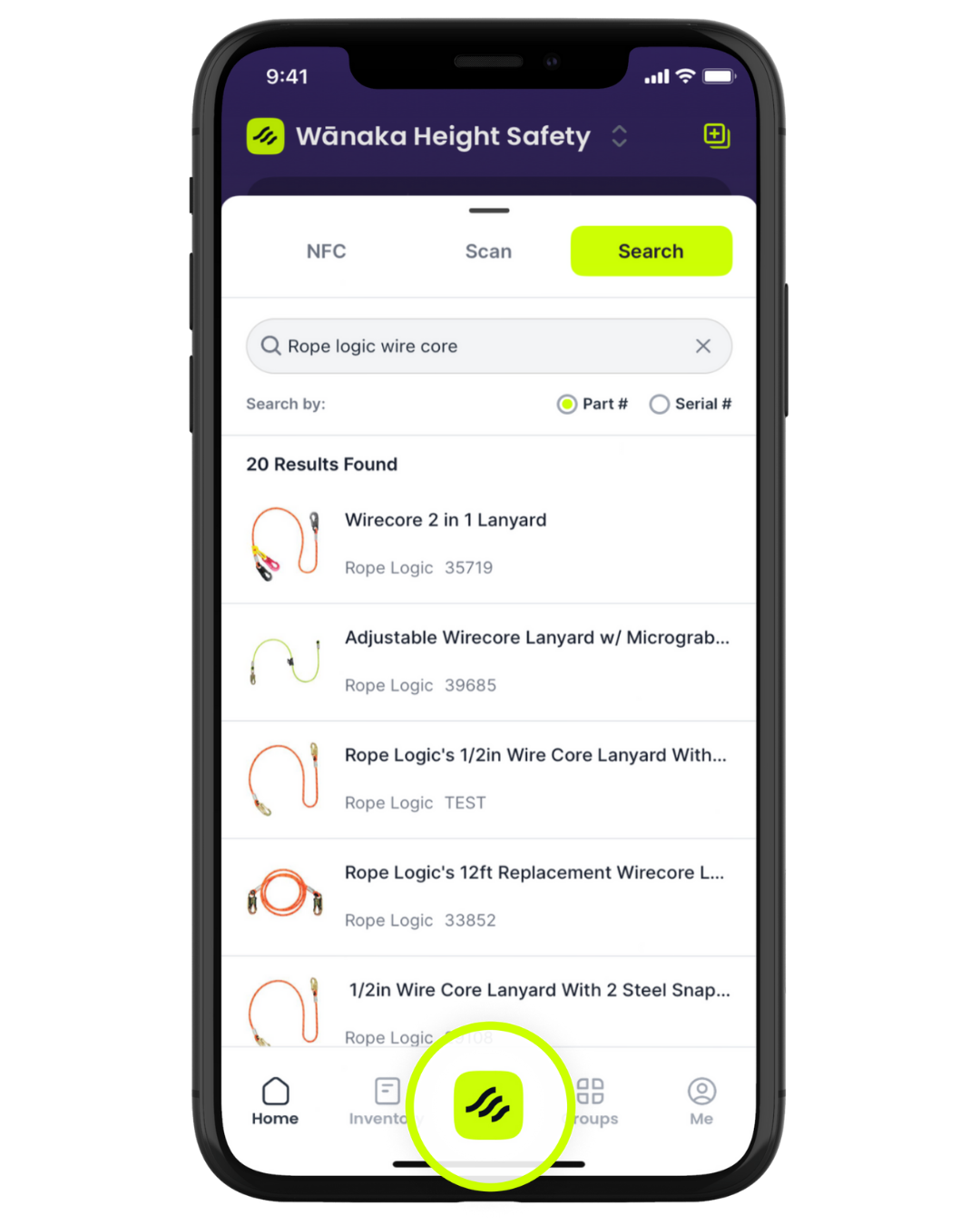
Find equipment to add to Inventory
Search for equipment in the search bar, or try scanning the packaging barcode.
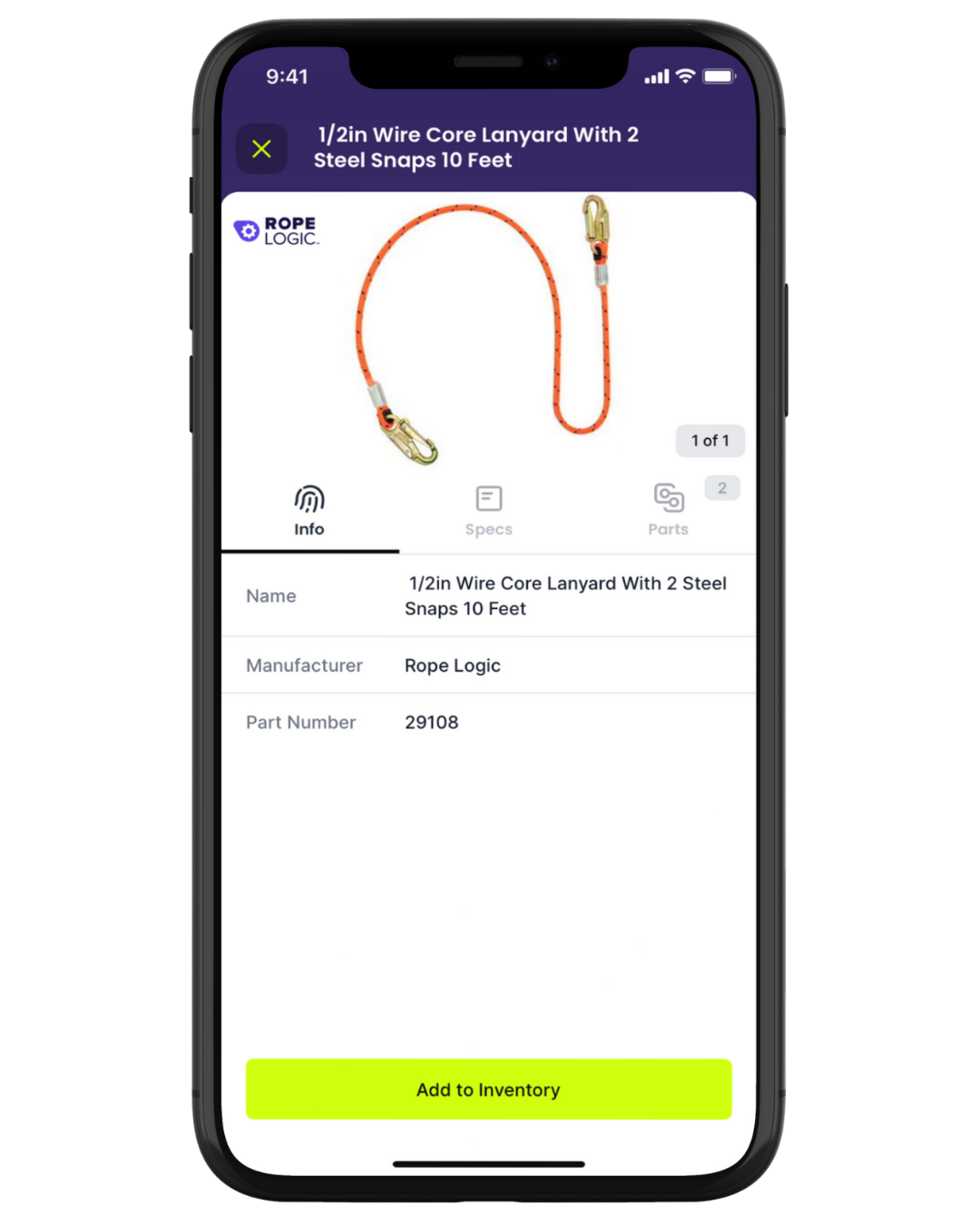
Select the item
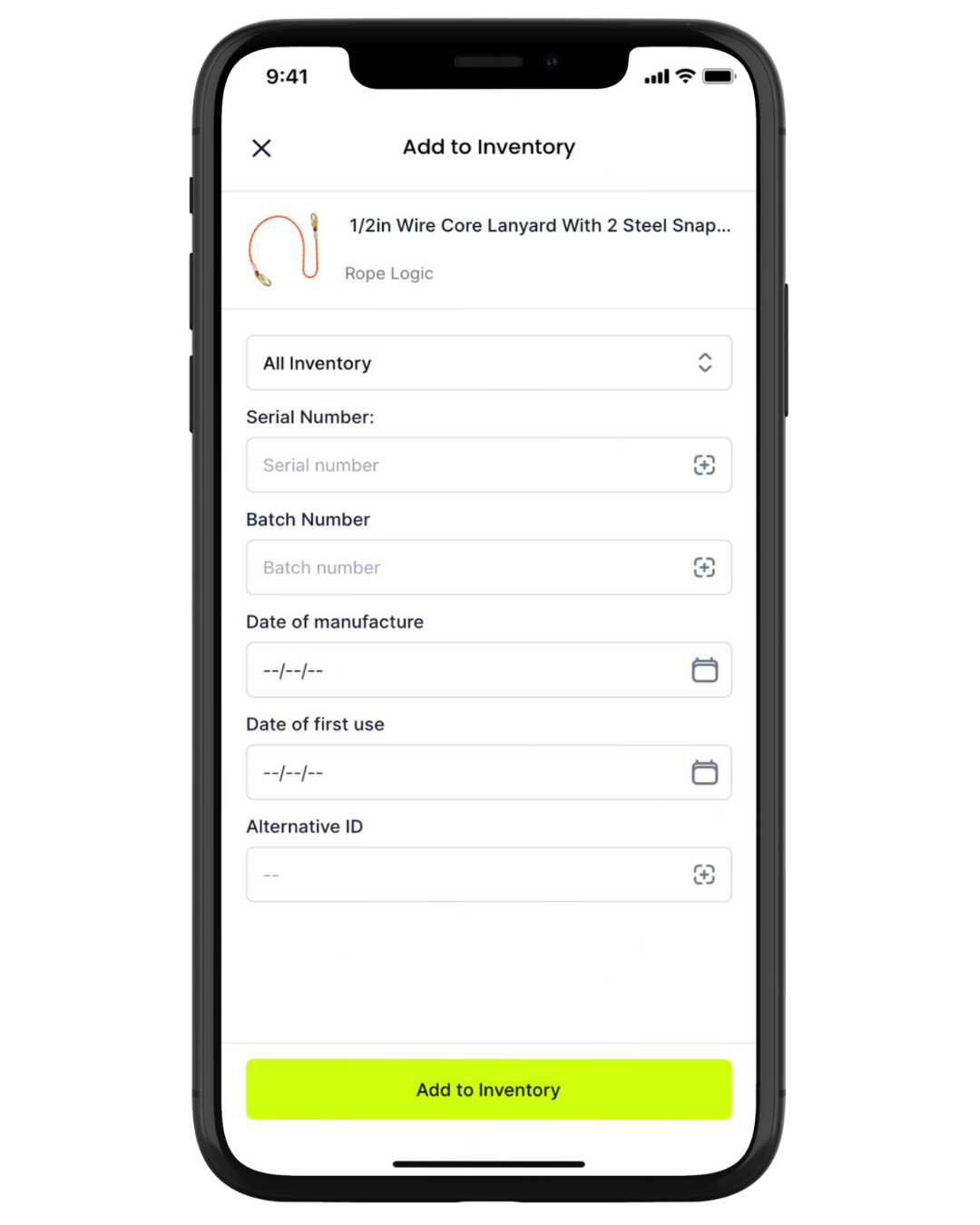
Find the item you want to add and select it, then select "Add to inventory".
Add Serial Number and Date of Manufacture
Capture the serial number by typing into the serial number field, or tap the crosshairs to open your camera and scan QR or data matrix codes to enter the serial without typing.
Once you have added the serial number, tap "Add to Inventory". The item is now saved in your Inventory.
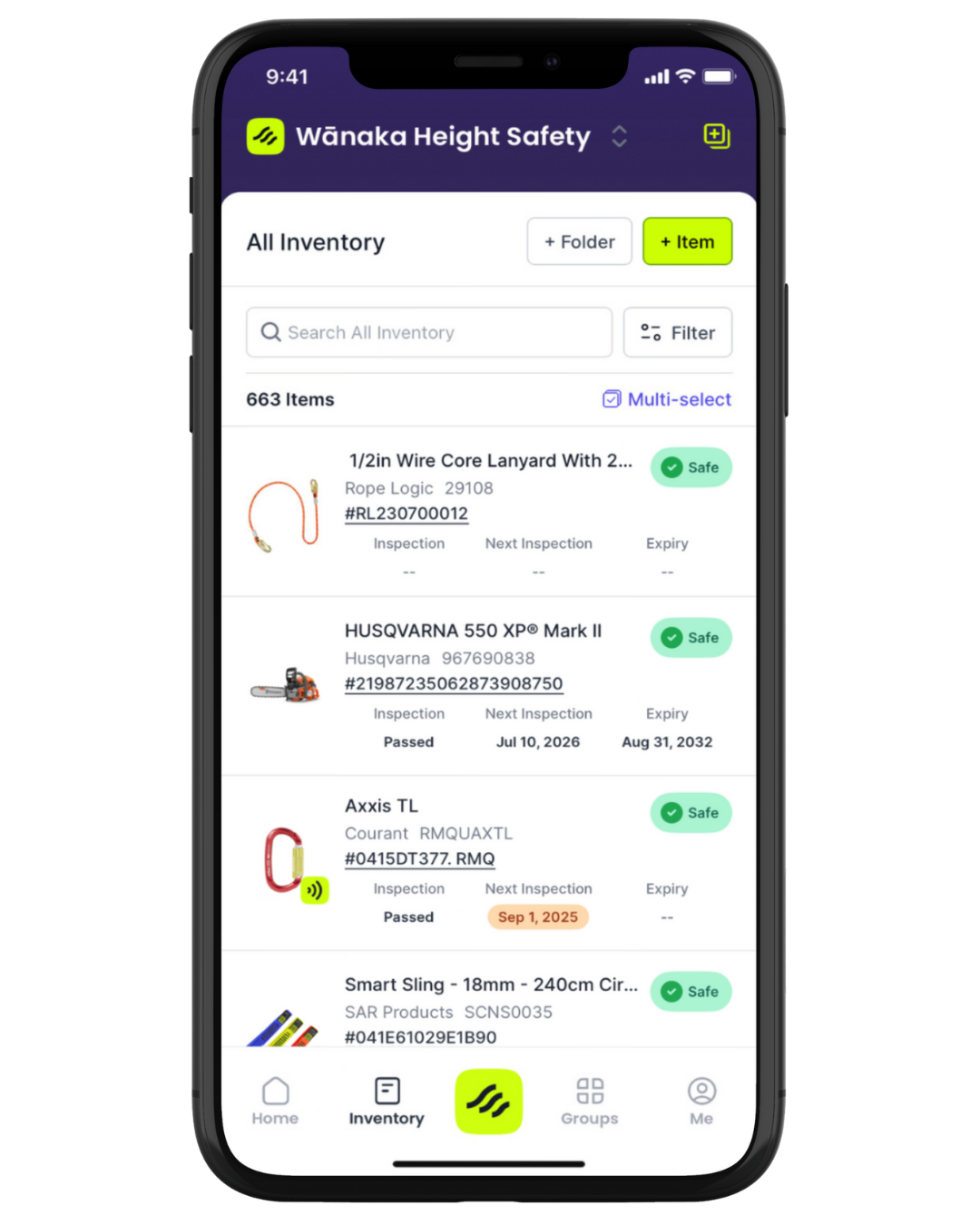
You’re all set! The item is now in your inventory
Tap the Scannable logo to search for your item. A long press on the logo will launch the NFC scanner.
Tapping "Scan" will allow you to scan a 2D code (QR or data matrix), or you can search by name, serial number, or part number.

Use NFC tags for longer lasting gear scanning
Heat shrink and laser etched serial numbers can get scratched up and hard to read.
Make sure you can always identify your equipment by
adding NFC tags.